
How I Imported Day One Journal Entries (+ Other Formats) into Apple Journal

I started journaling occasionally back in 2022 and daily for the better part of the last 1.5 years. As I explained in an earlier post, I was partly inspired by friends who have adopted the habit. Besides being therapeutic, journaling would not only help me retrieve memories from the past but also keep me accountable to my goals and review how I spend my limited time on earth. Also, journaling daily makes it a lot easier to blog later since I already have many things written down!
Around the time I started, Apple had just released their Journal app, but only for the iPhone. As I wanted to be able to type with a real keyboard on my iPad Pro instead, it really wasn’t an option. (Apple only released Journal for the iPad in September 2023.) Meanwhile, the Day One journaling app was already well-established and highly respected, so I started with that. I also knew that it had good import and export capabilities, meaning I wouldn’t be locked in. So I used that from 2022 until earlier this month (August 2026). That is when I looked into Apple Journal.
I tried out Apple Journal for three days, and that’s all it took for me to decide to switch from Day One. This is what motivated me:
- In the middle of nowhere in Poland, where I had unreliable and slow Internet access, using the Day One web app on iPhone (the free solution for using it on both iPad and iPhone) became a chore.
- The iPad’s and iPhone’s built-in Apple Intelligence proofreading function works much better with Journal than Day One. I mostly dictate instead of type nowadays, so Proofread is something I use a lot.
- I also saw that somebody had created an Apple Shortcut to import Day One journal entries into Apple Journal.
Unfortunately, that Shortcut no longer works—the developer created it 1.5 years ago and is no longer supporting it—and I couldn’t fix it. But it did inspire me to come up with my own method using Apple Shortcuts.
Ultimately, I had AI parse the Day One’s .json export into multiple files, one for each journal entry, consisting of just date, title, and text. I then created a very simple Apple Shortcut from scratch to import those files into Journal.
There were nearly 500 Day One entries to import, which took my iPad about an hour. I thought that was pretty good. If the other guy’s Apple Shortcut were to have worked, it would have required an overnight run.
Procedure
- Export from Day One: Open Day One app and export your journals. Tap on the three-dot button at the top and then Export. Choose JSON as the output file format and save the exported file to your Files app. If you export it with photos, it will save as a ZIP file and you will have to unzip it (Files > right-click on the ZIP file > uncompress). If you export it without photos (simpler), then you’ll end up with a single journal.json file.
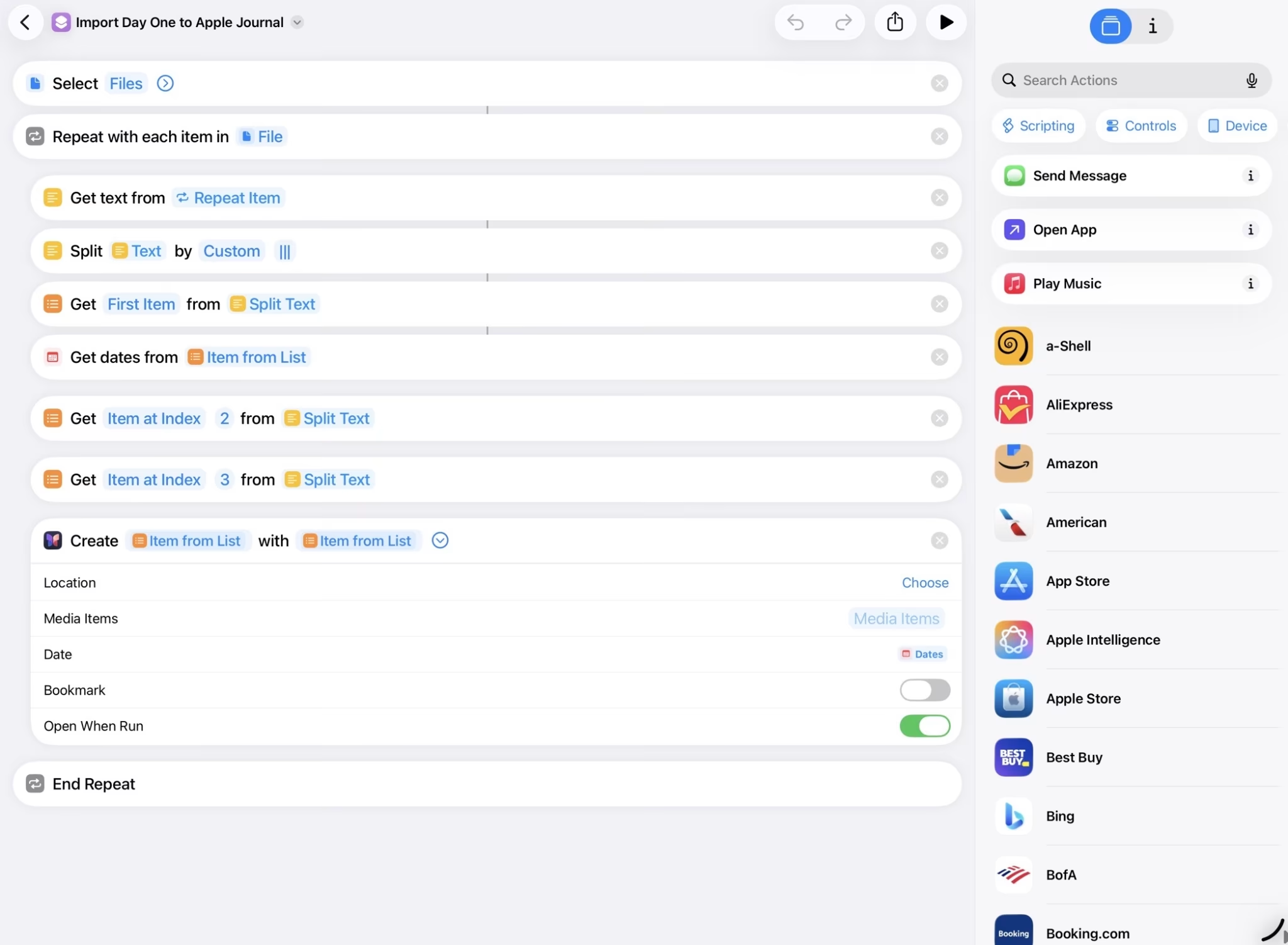
- Get the Apple Shortcut: Either download my Apple Shortcut or create one per the logic below. It is simple as it imports only three things from a single journal entry text file: date, title, and message from files the user can select. (You can modify it to import photos as well fairly easily, but that is beyond the scope of this article. I only had a few journal entries with photos so it was easier for me to manually add those photos to Apple Journal afterwards.)

Creating an Apple Shortcut to import journal text files into Apple Journal. - Parse the JSON with AI: Use an AI chatbot (Claude, ChatGPT, Copilot, Gemini, Grok, etc.) to parse your saved journal.json file into separate .txt files for each journal entry. Here’s a prompt you could use:
Create .txt files from each journal entry in the attached .json file. Each .txt file would be of the format:
createdDate|||title|||message
createdDate needs to be of the form like 2023-03-20 05:49:25
There should be no HTML tags in any part of the .txt file. Instead, convert message to Markdown.
Note: If you are super concerned about privacy, then read the following section to see what you could do instead of this step. Otherwise, proceed to Step 4.
- Import with Apple Shortcut: Run the Apple Shortcut and select the created .txt files. At first, just select a few to prove that your Apple Shortcut works. If your .txt files and Apple Shortcut were all created correctly, it should only take about 1 second for a few journal entries to be imported into Apple Journal. View the newly imported entries in Apple Journal to make sure everything is okay. After that, I’d still encourage you to just import, say, 100 at a time. (I actually tried doing all ~500, and it had a hiccup after ~400.)
Privacy-Retaining Alternatives
If you are concerned your privacy will be compromised by passing through your journal entries over to some service in the cloud that could then be used to train large LLMs, here is what you can do instead of Step 3 above:
- Use a local LLM instead of one of the frontier models I alluded to above. Installing and using a local AI model on your computer is far outside the scope of this article. If you don’t already have one set up, then consider the next option.
- Use a frontier model like ChatGPT, but feed it a “sanitized” .json file and have it create a Python script that can parse it. (What I mean by “sanitized”: copy your journal.json file, delete all but three innocuous journal entries from the copy, then give that to the AI chatbot to use to create a Python script.) Then run the Python script locally on your device on your real journal.json file. Both options keep your exported journal entries on your machine so your privacy is ensured
Importing Other Formats to Apple Journal
The beauty of the simple Apple Shortcut is that it can easily import any journal entry that is in a text file of the format:
createdDate|||title|||message
where three pipe characters (|||) is simply a field separator. (Remember, createdDate needs to be of the form like 2023-03-20 05:49:25. Simply 2023-03-20 should work too.)
In my case, I had roughly 70 journal entries written in either .doc or .docx, and then another 30 that were handwritten in the late 1980s and 90s and scanned as PDFs around 2000. I had my local AI agent (Hermes) convert all of those to .txt files and then I ran the Apple Shortcut on them.
Indeed, I got kind of a thrill seeing one of my oldest handwritten journal entries written on December 7, 1988 about a fourth-grade field trip my class did on April 10, 1985. Forty years later, I can’t recall any of the details I had written about. (Fortunately, as a new teenager in 1988, I recognized that I should write things down as I was sure to forget them in the upcoming decades!)
We went to Sutter’s Fort. I went in Wesley P.’s car with Ramin and Wesley’s mom. We went to the fort. I got 25¢ postcard, then Michael R. gave me 2 quarters so I bought a handmade candle and another postcard. Then we went to a theater to see a film about 1849—the Gold Rush days. Mrs. P. bought us shaved ice. I got something like strawberry and Ramin got bubble gum flavor (blue) with Wes.
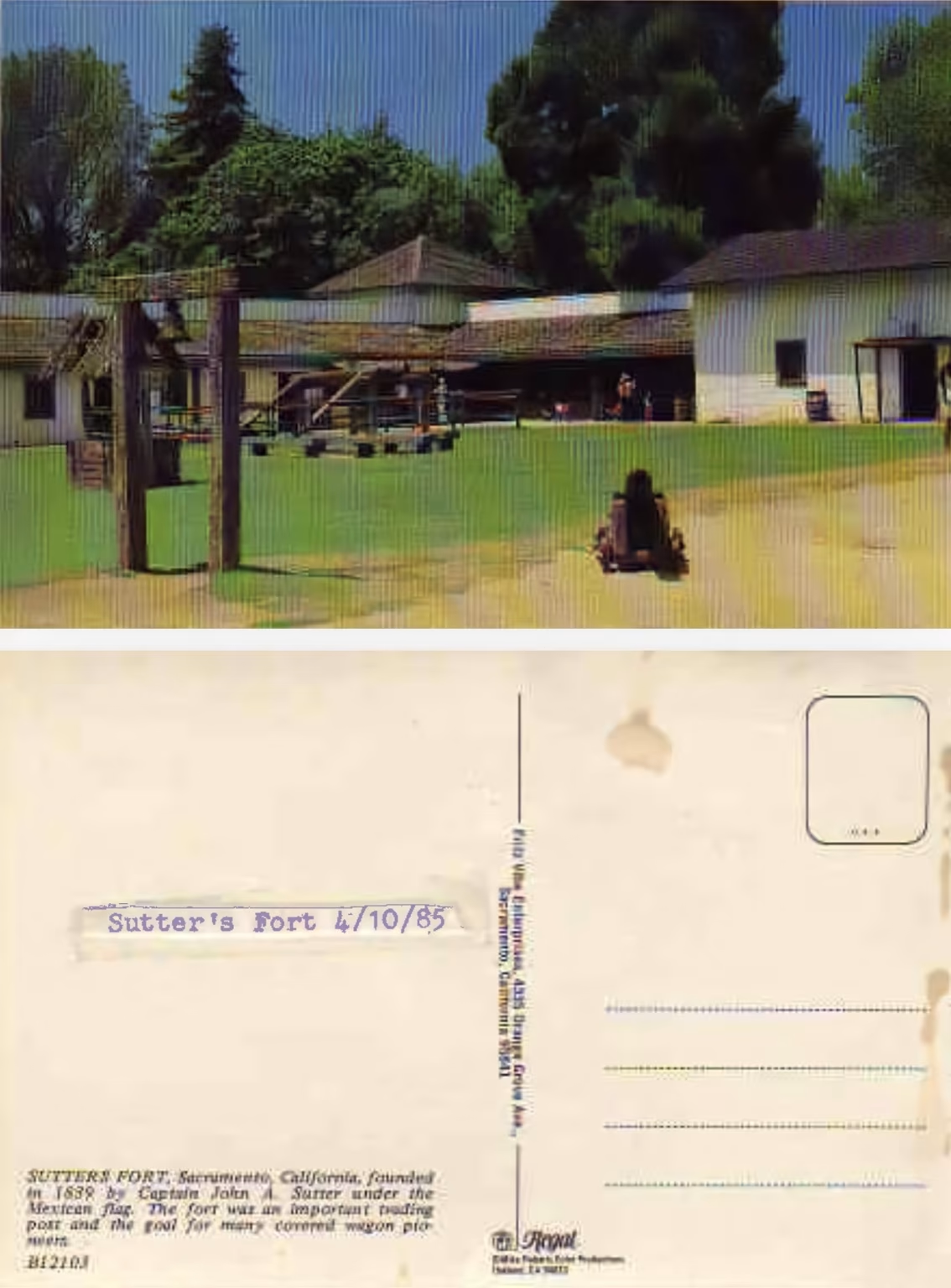
My local AI model is slow, but I was able to do other tasks while it was doing its thing, and it performed totally acceptably. The hardest entries to convert, as you can imagine, were the handwritten ones, but OCR (Optical Character Recognition) did a remarkably good job deciphering my scribble!
The Result
So now I have all of my journal entries (over 600) all in one place: in Apple Journal.
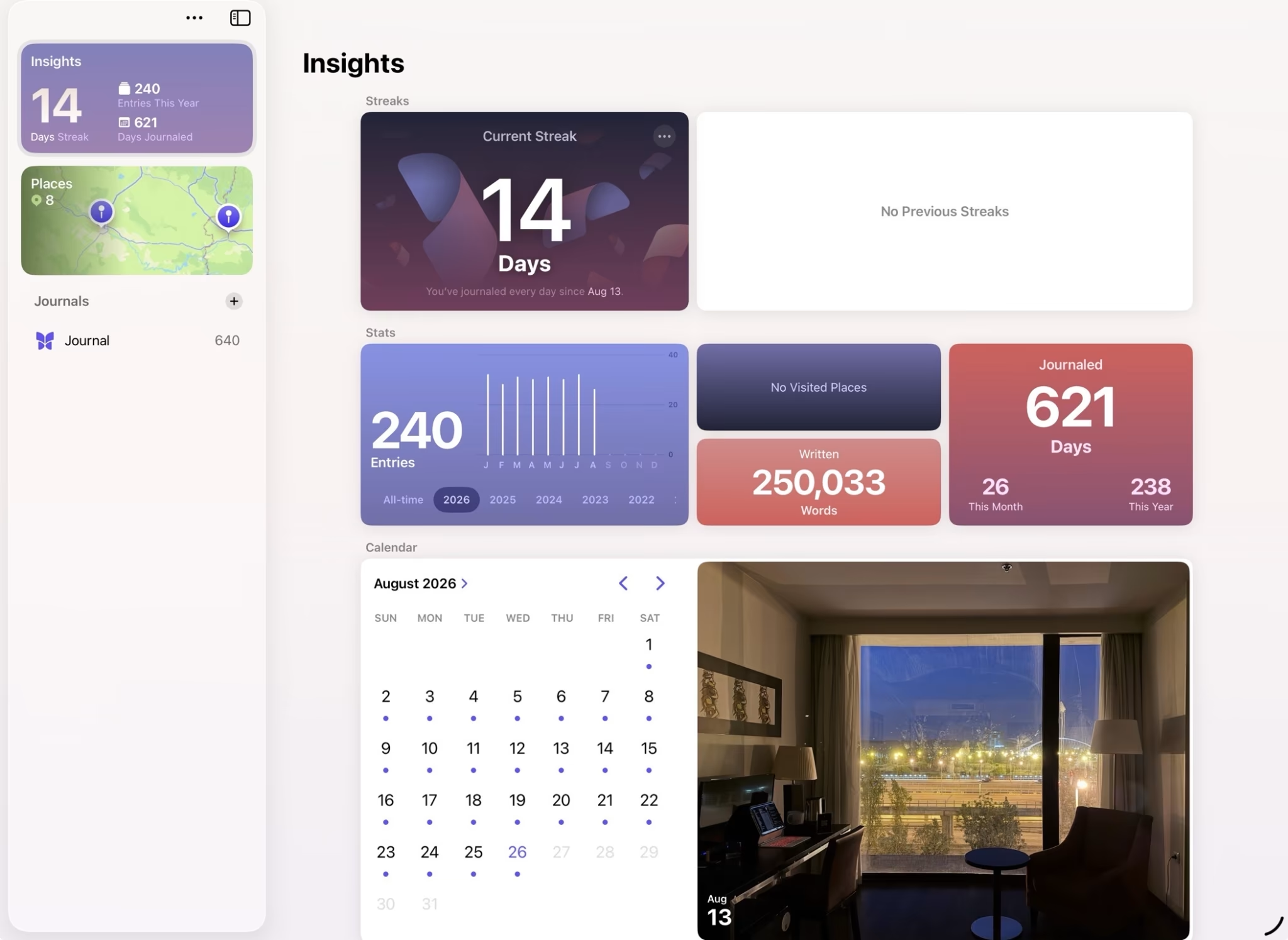
It’s free, secure, easy to search, and beautifully designed. It syncs flawlessly with all my devices, which are all Apple. I like it. And with AI, it’s relatively easy to migrate data in and out of it, as you can tell by this post, so you don’t have to worry about ecosystem “lock-in.”
Good luck with your own migration. Happy journaling!
One comment:
Thanks Felix for the low down on this. I keep a journal on Apple's Pages and I ldo ike it in the cloud so I can dictate into it from 3 different devices. But do you know if this means that my journals are ripe for training LLMs? My best, Mia