Thirteen Years With OneNote—Then I Found Obsidian

“OneNote is my favorite app after Excel,” I had proudly proclaimed 13 years ago. “I use it all the time.”
And I meant it. I had been using Microsoft’s free note-taking app—available on Windows, macOS, iOS, and Android—for at least that long. It was particularly useful during my first multi-country European trip in 2013, back before apps like ChatGPT could conjure a travel itinerary in thirty seconds. Because I was inundated with consulting work at the time, I had actually hired someone on Fiverr to come up with itineraries for each of the six countries I was visiting. (Clearly, this was long before ChatGPT came into existence.) And I kept track of all of it in OneNote, running on my Nokia Lumia 900 and Microsoft Surface RT.
Over the years, I looked at rivals. Evernote had its moment—Tim Ferriss was such a devoted power user and advisor that he wrote research for The 4-Hour Body almost exclusively in it. Then there was Notion, and later Apple Notes after I switched to an iPad Pro. But none of them offered enough of an advantage to justify the friction of migrating. Evernote and Notion also had unwanted subscription fees. So I stuck with OneNote, warts and all.
The warts, it turns out, were considerable.
But I have finally switched—and not to any of the apps above. I switched to Obsidian.
What Is Obsidian?
Obsidian was created in 2020 by Erica Xu and Shida Li, two University of Waterloo graduates who had previously built Dynalist, a powerful outlining tool. During the pandemic, Xu decided to build the note-taking app she had always wanted but could never find. The result was Obsidian.
The app isn’t open source, but it uses a free, non-proprietary file format: plain Markdown. Every note you create is its own .md file sitting in a folder on your device—readable by any text editor, transferable to any app, and fully under your control. That’s a meaningful distinction from apps like OneNote or Evernote, which lock your notes into proprietary formats that make them painful to export. Obsidian has also cultivated a large and active community of developers who build plugins that extend what the app can do, often well beyond what any company-built feature set could cover.
I’ve been using Obsidian literally every day for the past two months. Here’s why I made the switch, and how.
OneNote’s Biggest Annoyance
One of my most common use cases for a note-taking app is clipping things from the web—articles, research, interesting paragraphs I want to be able to find later. OneNote handles this rather poorly.
Paste copied text from a webpage and you get chaos: no blank lines between paragraphs, headings rendered in a font smaller than the body text, indentation that doesn’t reset after a list, and a generous helping of whatever ads happened to be sitting inside the text block you highlighted. If you paste from the browser’s Reading Mode, some of this gets better—but Reading Mode doesn’t work on all pages. And the iPad and iPhone apps make things worse by not automatically capturing the source URL, which means you have to go back and paste it in manually.
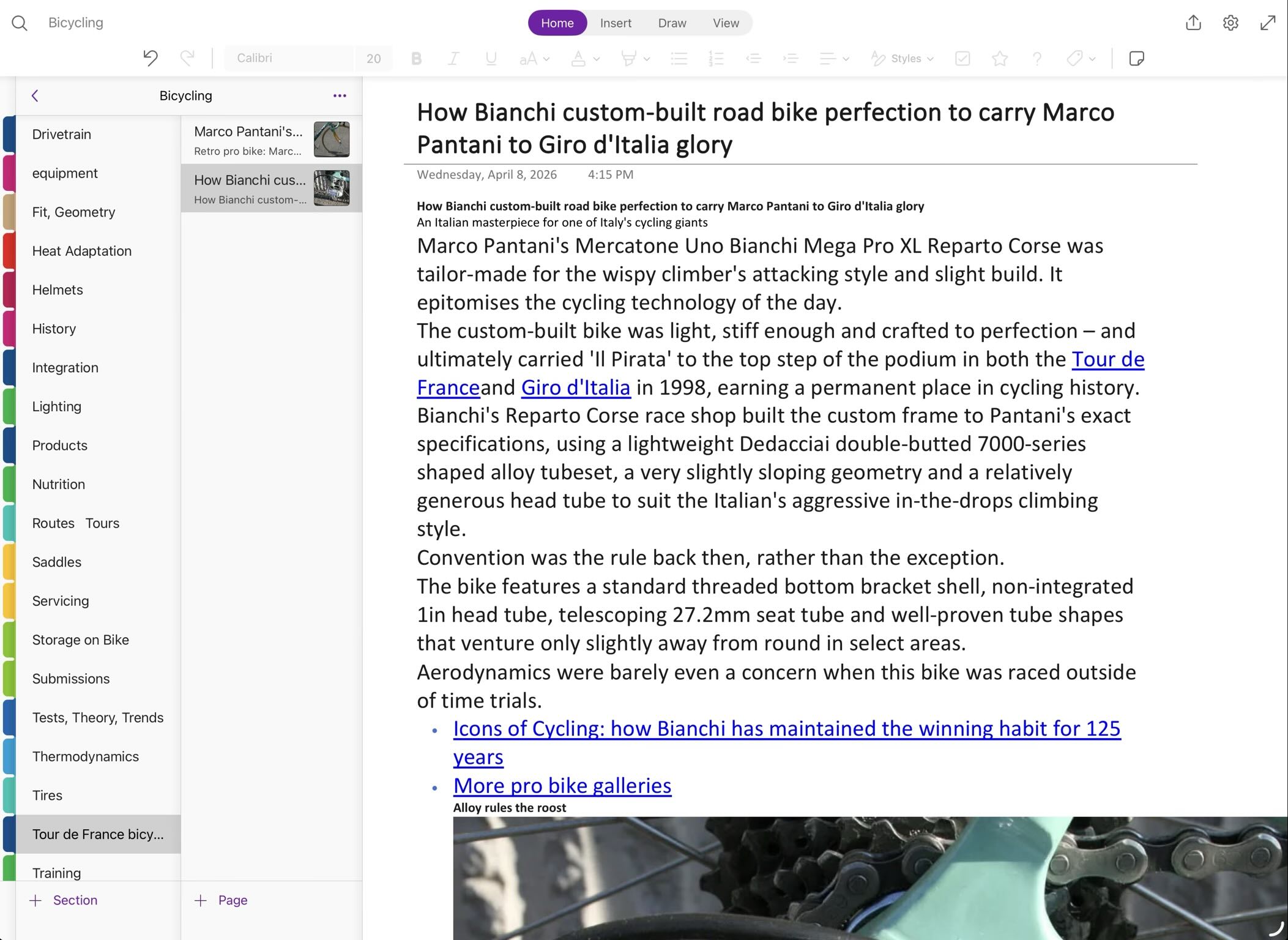
I was so annoyed by this that I created my own web app to paste copied text into OneNote while mitigating the above issues. I called it ONFormat (short for OneNote Format). I’ve been using and refining it for a year, and it works reasonably well. I was close to releasing it publicly.
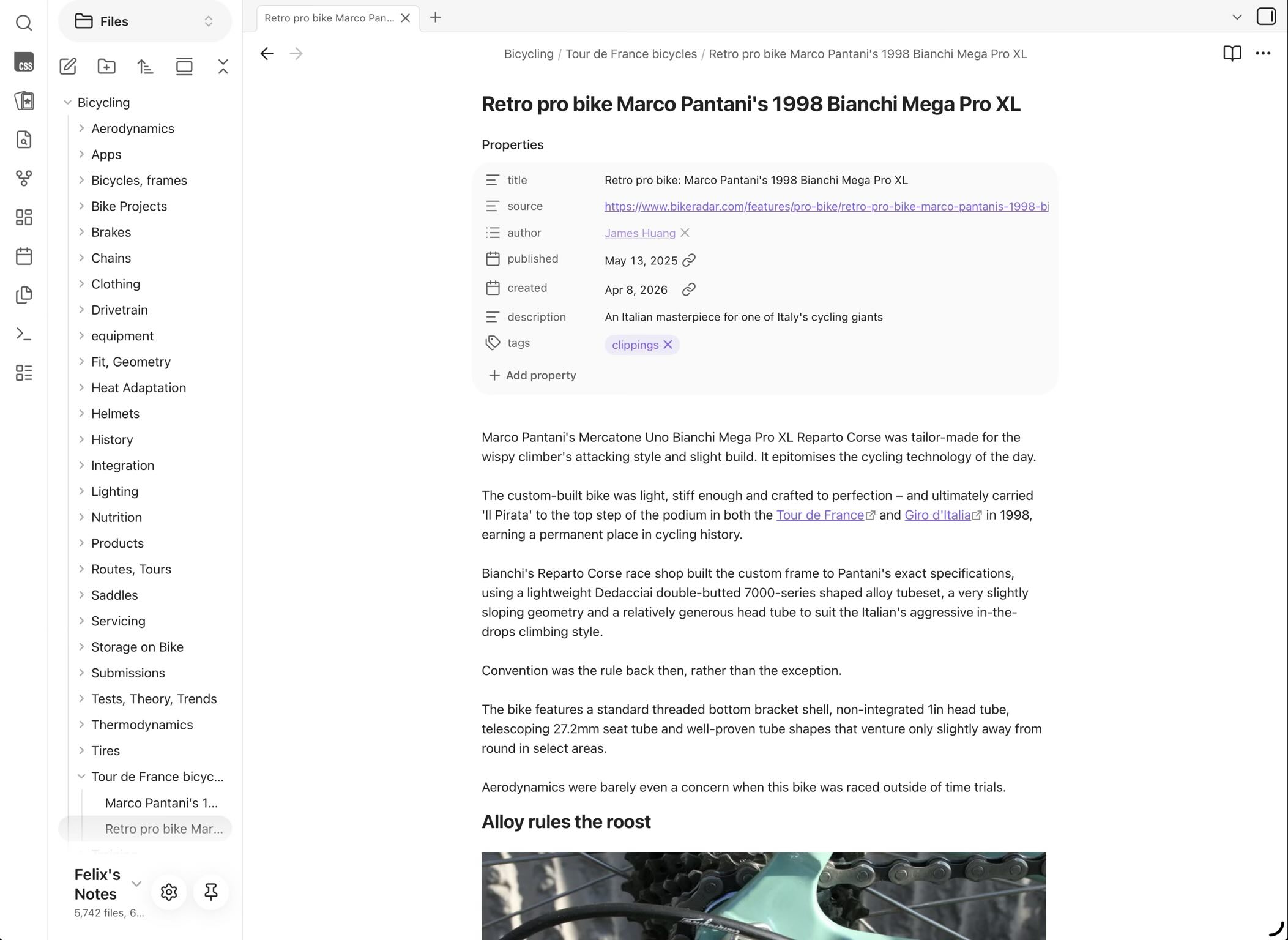
Then I discovered Obsidian Web Clipper.
It’s a first-party, companion extension for Safari (and other browsers) that does everything ONFormat does, and more. It strips ads, headers and footers, converts everything to clean Markdown, and retains hyperlinks. It also automatically creates a metadata block at the top of each clipped note containing the source URL, author, publication date, and description.
On its own, Obsidian pastes content as plain text with no formatting retained. So Web Clipper is what makes it genuinely useful for this workflow.
For anyone still committed to OneNote who wants something similar, ONFormat is still available at felixwong.com/apps/onformat. You can also create a one-click Safari bookmarklet using the following code in place of the URL:
javascript:(function()%7B%20%20%20var%20currentUrl%20=%20encodeURIComponent(window.location.href);%20%20%20window.location.href%20=%20’https://felixwong.com/apps/onformat/?webpage=’%20+%20currentUrl;%20%7D)();
I intend to release the source code to GitHub eventually. Otherwise, I’ve stopped developing it since I no longer need it.
Other Reasons to Switch
Web clipping was the thing that forced the decision, but Obsidian has a long list of other advantages that made the switch feel overdue.
The mobile apps are a particular embarrassment for OneNote. The iPhone version doesn’t allow you to transform text into headings or highlight words and sentences. The iPhone and iPad apps don’t support any kind of Find and Replace—not even a basic one. Microsoft’s official workaround for replacing text in OneNote is to copy the content into Word, do the replacement there, and paste back. This is not a joke.
Obsidian’s approach to formatting is the opposite: because all your notes are in Markdown, you don’t even need menus or toolbars (although they exist in Obsidian). Highlighting is two equal signs on either side of the text. Headings are pound signs. It works identically on desktop and mobile.
Other advantages worth mentioning:
- Backlinks and graph view. Obsidian tracks connections between notes and can visualize them as an interactive graph—useful for finding relationships you didn’t know existed.
- Transparent folder structure. Your notes live in a regular folder on your device. You can see them in Files, move them around, back them up however you like.
- Find and Replace with Regex. OneNote has no Replace function at all. Obsidian has it built in, and a community plugin called Regex Find/Replace extends it to full regular expression support.
- Easy image pasting. On iPad, inserting an image in OneNote requires adding it to your Photos library first, then inserting from there. In Obsidian, you copy and paste directly.
- Alphabetized folders. A small thing that OneNote inexplicably doesn’t do.
How to Migrate
One reason I stayed with OneNote so long was the assumed difficulty of leaving. Evernote, Notion, and Apple Notes all looked painful to migrate to. Obsidian is not—at least with a migration tool.
The tool I used is called OneNote MD Exporter—a free Windows console application that converts OneNote notebooks into Markdown files. Despite being a command-line tool, it doesn’t require you to type any commands; it walks you through the process with on-screen prompts. Critically, it preserves your folder structure, which Obsidian’s built-in importer does not.
The migration isn’t perfect. OneNote leaves behind residual HTML tags in some notes, and these carry over into the exported Markdown files. Two community plugins—Linter and Regex Find/Replace—make it practical to clean these up in bulk. The specific Linter rules and Regex patterns I used are documented in the sections below.
Linter Settings
To clean up some of the residue from the OneNote-to-Obsidian migration, I configured Linter to process rules in this order.
- Toggle on: All paragraphs should have exactly one blank line before and after (search for “paragraphs” in Linter settings to find it)
- Change
«to<— pattern:« gm < - Change
»to>— pattern:» gm > - Convert yellow highlights to Markdown — pattern:
<span(>):yellow'>(.?) gm $2 - Eliminate all other span tags — pattern:
<span(>)'>(.?) gm $2 - Ensure space before links — pattern:
(\s\n\(!])([)(?!^) gm $1 $2 - Remove space between bracket and parenthesis in links — pattern:
(])\s+(() gm $1$2 - Remove stray
\n\nAM\n\n(optional) — pattern:\n\nAM\n\n gm \n
Regex Find/Replace
The Regex Find/Replace plugin lets you search for patterns rather than fixed strings—useful for cleaning up inconsistent formatting at scale. A few patterns that came in handy:
\n— new line^— start of line$— end of line.*— any characters (not including newline)\d— any single digit\w— any single word character
In practice, the fastest approach is to describe what you’re trying to match to an AI chatbot and have it generate the Regex for you.
After running Linter and doing some manual find/replace using the Regex Find/Replace plugin, all of my migrated notes are very “clean” now.
Bonus: Obsidian as a Flashcard App
A week after switching to Obsidian, my annual Quizlet subscription was due to renew. The timing felt like a sign.
Quizlet had served me adequately for foreign language vocabulary practice, but it had a structural problem: once a vocabulary set grew past a few hundred words, it became unwieldy. I had ended up with dozens of fragmented sets across English, Spanish, French, Mandarin, and Portuguese—and Quizlet’s review algorithm didn’t weight toward the words I actually needed to practice.
What I wanted was a single file per language, potentially thousands of words, with a spaced repetition system that surfaces the ones I know least. A community plugin for Obsidian called Spaced Repetition does exactly this. Flashcards live directly in a Markdown file using a simple format:
[vocabulary word 1]
[link to pronunciation, e.g., on Forvo]
?
[definition]
[example sentence]
[image]

[vocabulary word 2]
[link to pronunciation, e.g., on Forvo]
?
[definition]
[example sentence]
[image]
The ? separator indicates the front and “back” of the virtual card. A blank line separates the flashcards. That’s it.
Migrating my Quizlet vocabulary into this format turned out to be more involved than I expected. None of the half-dozen AI assistants I tried could reliably generate valid links to images (and to a certain extent, pronunciation) for thousands of vocabulary terms. I ended up writing Python scripts (with AI help) to scrape my existing own Quizlet data and images. The whole process took the better part of three days.
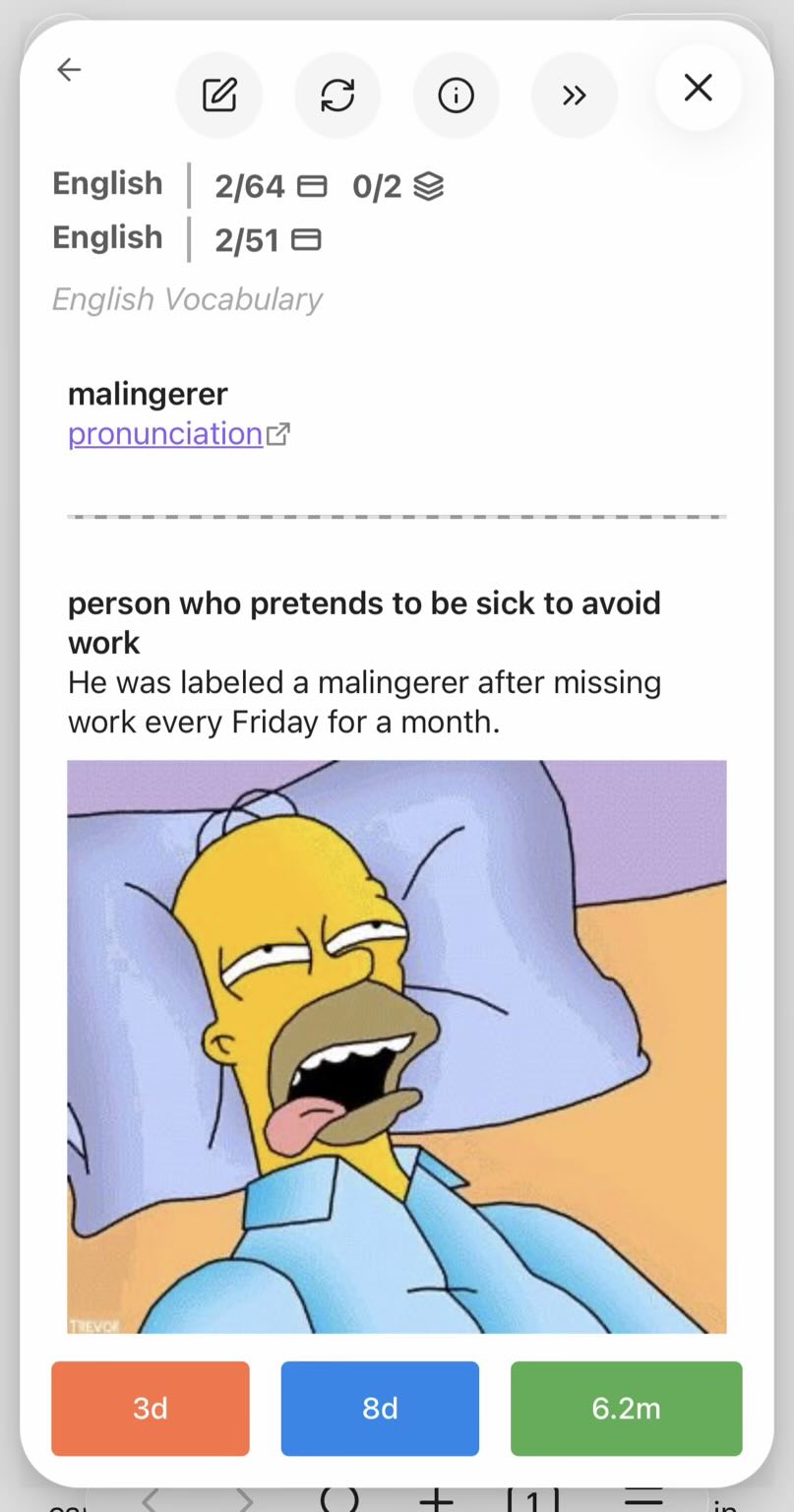
I don’t regret it. The result is a set of vocabulary files I fully own and control, importable into any future application that can read plain text. Adding new words is faster than Quizlet’s interface ever was. And the spaced repetition algorithm is doing exactly what I wanted—drilling me on the words I keep missing, not the ones I already know cold.
This was also a good exercise in using AI for coding and problem-solving.
After 13 years, OneNote is still on my devices, but I haven’t opened it for anything new since February. Everything goes into Obsidian now.
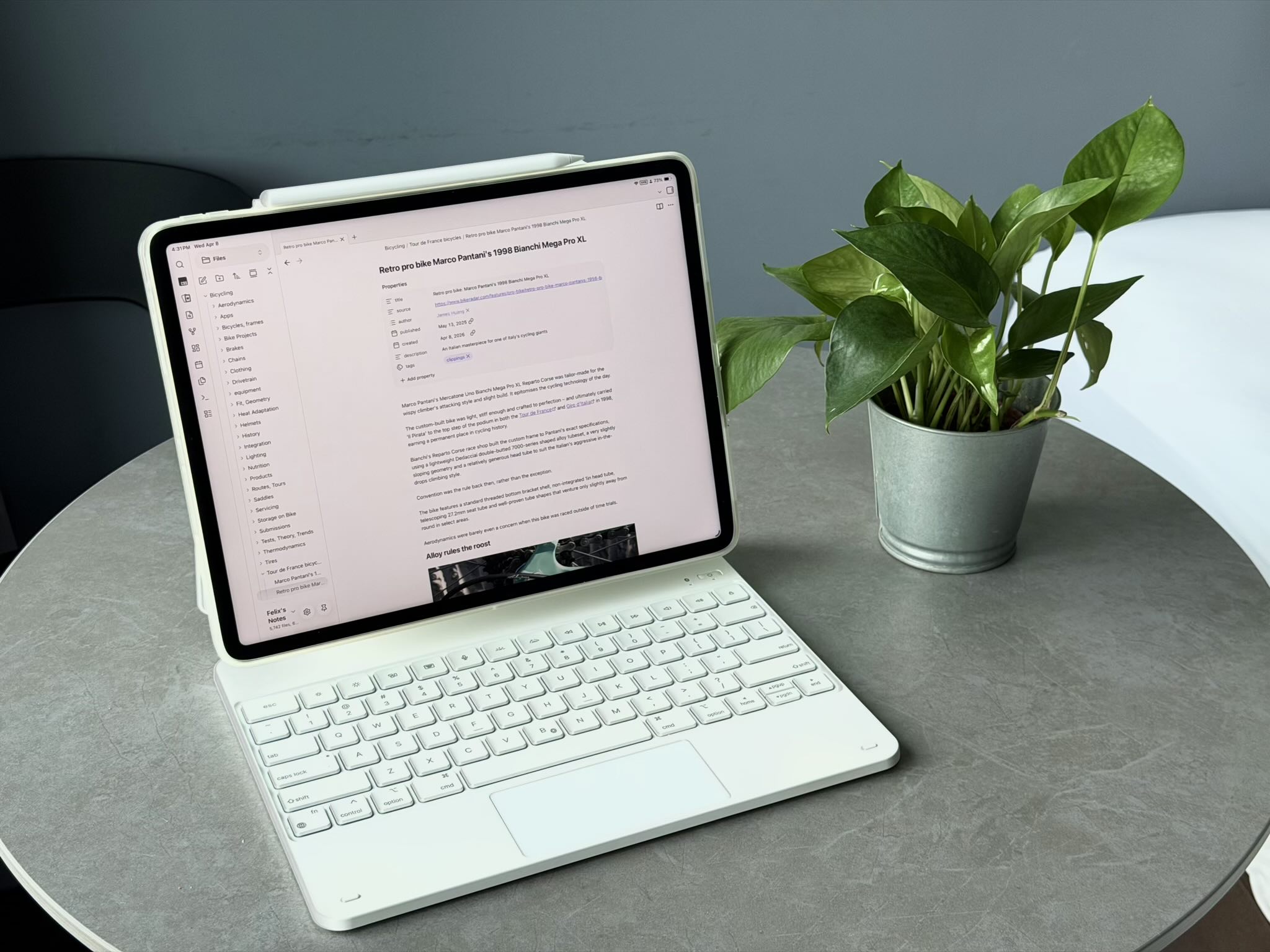
With this migration, I use Microsoft products for almost nothing anymore. I’ve even switched over to Apple Numbers—which works better on iPad and iPhone than Excel—and switched away from Microsoft To-Do to using just a Markdown file instead! The latter will be the topic of one of my next posts.