How to Type Pinyin Tones on iPad with a Hardware Keyboard

When I switched from Windows to an iPad Pro as my main computer in February 2022, I carried over most of my workflows without too much trouble. But one thing I never managed to sort out was how to type Pinyin tonal marks with a hardware keyboard. Pinyin, for those who haven’t spent years attempting to become conversational in Mandarin, is the system that uses the Latin alphabet—plus diacritical marks over vowels—to spell out the pronunciation of Chinese characters.
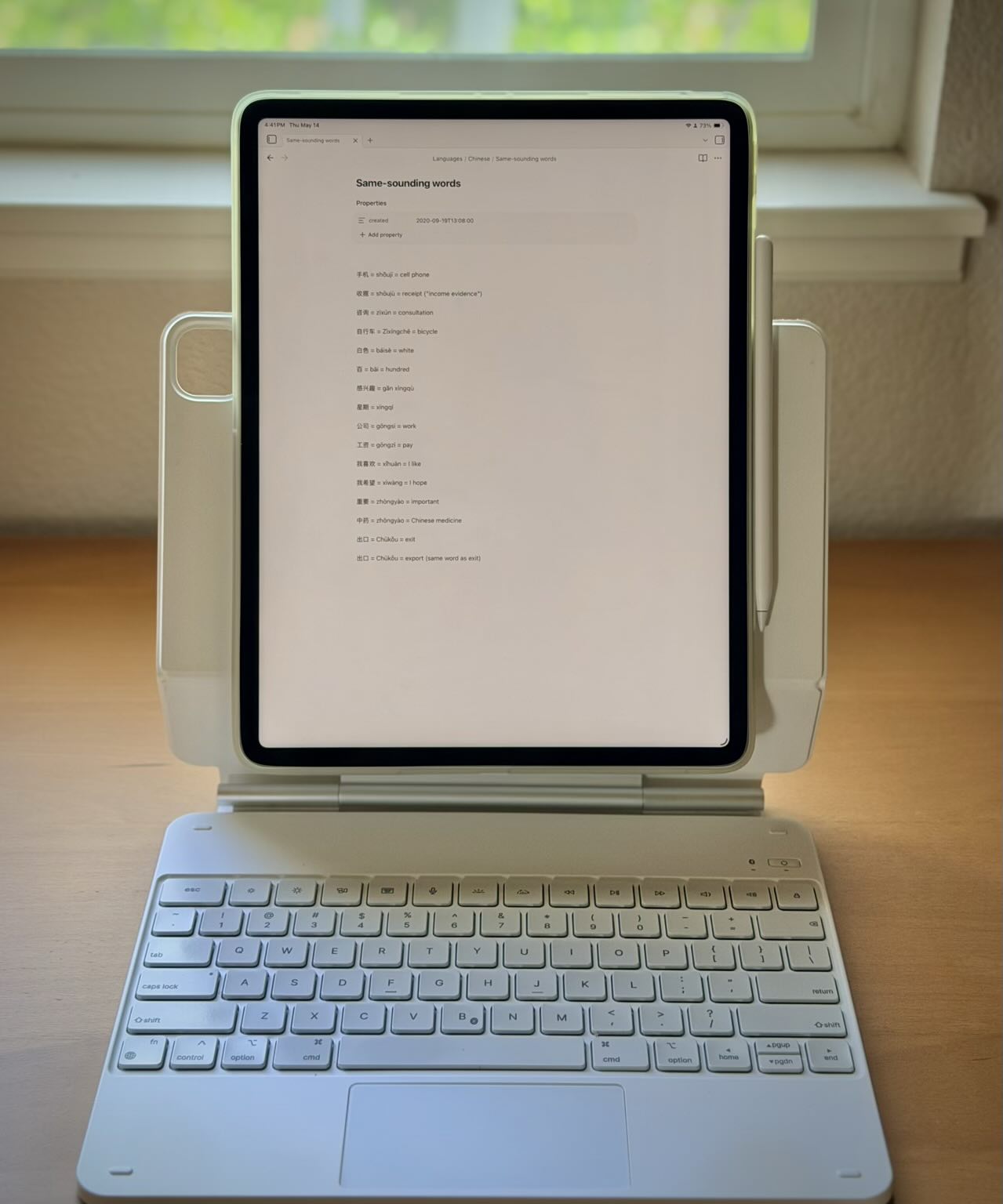
On Windows, I had solved this by creating my own custom United States-International+Pinyin keyboard and installing it. On the iPad, I knew I could hold down a vowel on the onscreen keyboard and pick the right tone mark from the popup menu that appears—but with a hardware keyboard attached, that menu doesn’t show up unless you disconnect the keyboard (or have a special function row key to surface it like my ESR keyboard does). And while the second (rising) and fourth (falling) tones were easy enough to type via standard option-key shortcuts that work just like French accent marks, the first (high) and third (falling-rising) tones were a different matter entirely. I simply could not figure out how to produce an ā or an ǎ. For four years, I clumsily switched to the on-screen keyboard to produce those letters.
Until now.
It turns out the iPad has had this capability built in the whole time. No custom keyboards, no third-party apps, no sorcery required.
Method 1: Hold down a key and select letter with tonal mark
This method is so simple that it’s bewildering why it took me years to figure this out. It’s the method I recommend and bet most people would choose.
Much like on the software keyboard, just hold down a vowel on your hardware keyboard. Multiple choice options abound with various diacritic marks above the letter, and you simply select them by pressing on the number key corresponding to the one you want, or selecting it with your finger on the screen.
It’s simple and intuitive.
Method 2: Enabling ABC – Extended
Here’s a method I’ve used for the six months… because I didn’t know Method 1 existed. It’s not nearly as intuitive because it requires keystroke memorization, but it works.
Go to Settings > General > Keyboard > Hardware Keyboard, tap on English, and switch the keyboard layout from the default U.S. to ABC – Extended.
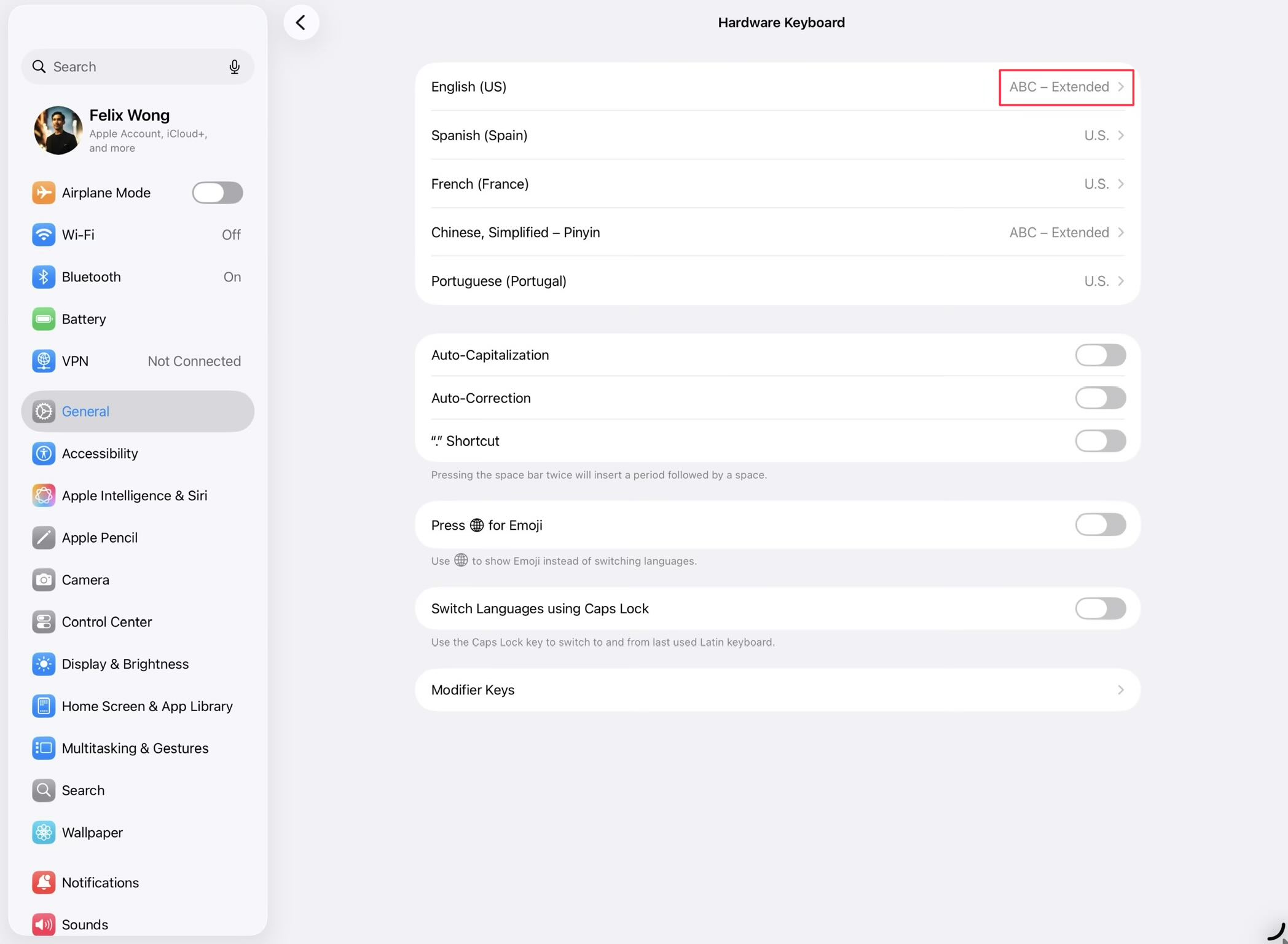
Once ABC – Extended is active, the hardware keyboard gains a set of dead keys—Option-key combinations that prime the keyboard for a diacritical mark, which then attaches to whatever vowel you type next. Below are all the keystrokes you need.
Pinyin Characters
ā,ē,ī,ō,ū = [option-a] [vowel] (i.e., press option and a, release, then type the vowel)
á,é,í,ó,ú = [option-e] [vowel]
ǎ,ě,ǐ,ǒ,ǔ = [option-v] [vowel]
à,è,ì,ò,ù = [option-`] [vowel]
ü = [option-U] [u]
But when you need to put a diacritical mark above ü, use the v key as the vowel:
ǖ = [option-a] [v]
ǘ = [option-e] [v]
ǚ = [option-v] [v]
ǜ = [option-`] [v]
Special Characters for French, Spanish, and Other Languages
Note: the stock U.S. hardware keyboard already provides you with the dead keys to produce the following accent marks in much the same way. I think the only difference is for the circumflex (^) mark, which on the USA hardware keyboard is made by pressing [option-I].
á,é,í,ó,ú = [option-e] [vowel]
à,è,ì,ò,ù = [option-`] [vowel]
â,ê,î,ô,û = [option-6] [vowel]
ä,ë,ï,ö,ü = [option-u] [vowel]
ñ = [option-n] [n]
ç = [option-c] [c]
¿ = [option-shift-/]
¡ = [option-1]
Conclusion
Regardless of whether you use Method 1 or 2, typing Pinyin tonal marks on an iPad is simple—arguably much easier than on a Windows PC.
This came in particularly handy for me before I went to Hong Kong this year and was cramming Mandarin into my brain on the plane ride over. (Yes, I realize most people in Hong Kong still speak Cantonese, but many—like my aunt—also speak Mandarin, so I focused on that since I know 100 times more Mandarin words than Cantonese ones.)
Hopefully, if you are reading this page, this tip comes in handy for you. If it has, please leave a comment below. Xièxiè!